
CSS 笔记
基本介绍
CSS 层叠样式表(英文全称:(Cascading Style Sheets)) 能够对网页中元素位置的排版进行像素级精确控制,支持几乎所有的字体字号样式,拥有对网页对象和模型样式编辑的能力 ,简单来说,美化页面
引入方式
行内式
常配合JS使用
语法: `style="样式名: 样式值; 样式名: 样式值; ..."
缺点如下
1. 代码复用性低,不利于维护
2. css 样式代码和 html 结构代码紧在一起,影响阅读,影响文件大小,影响性能
html
<input
  type="button"
  value="按钮"
  style="
            width: 60px;    /* 宽度 */
            height: 40px;  /* 高度 */
            background-color: rgb(140, 235, 100);  /* 背景色 */
            color: white;   /* 字体颜色 */
            border: 3px solid green;   /* 边框线:实线(solid) */
            font-size: 22px;  /* 字体大小 */
            font-family: '隶书';  /* 字体样式 */
            border-radius: 5px;   /* 边角弧度 */
    "
/>内嵌式
说明
- 内嵌式样式需要在 head 标签中,使用一对 style 标签,通过指定标签的方式来定义 CSS 样式(缺点:无法精确控制,只能全局改变)
- CSS 样式的作用范围控制要依赖选择器
- CSS 的样式代码中注释的方式为 /* */
- 内嵌式虽然对样式代码做了抽取,但是 CSS 代码仍然在 html 文件中
- 内嵌样式仅仅能作用于当前文件,代码复用度还是不够,不利于网站风格统一
html
<head>
  <meta charset="UTF-8" />
  <style>
    /* 通过选择器确定样式的作用范围 */
    input {
      width: 60px; /* 宽度 */
      height: 40px; /* 高度 */
      background-color: rgb(140, 235, 100); /* 背景色 */
      color: white; /* 字体颜色 */
      border: 3px solid green; /* 边框线:实线(solid) */
      font-size: 22px; /* 字体大小 */
      font-family: "隶书"; /* 字体样式 */
      border-radius: 5px; /* 边角弧度 */
    }
  </style>
</head>
<body>
  <input type="button" value="按钮1" />
  <input type="button" value="按钮2" />
  <input type="button" value="按钮3" />
  <input type="button" value="按钮4" />
</body>外部样式表
说明
- CSS 样式代码从 html 文件中剥离,利于代码的维护
- CSS 样式文件可以被多个不同的 html 引入,利于网站风格统一
- 将 css 代码单独放入一个
.css文件中,通过<link>标签从外部引入 CSS 样式表,<link href="CSS 文件路径" rel="stylesheet" />,rel 后填写的是文件类型,CSS 指定是 stylesheet
html
<head>
  <meta charset="UTF-8" />
  <!--引入外部样式表-->
  <link href="CSS文件路径" rel="stylesheet" />
</head>
<body>
  <!--主体内容-->
</body>选择器
| 选择器 | 写法 | 示例 | 示例说明 |
|---|---|---|---|
| 元素选择器 | 元素名称 {...} | h1 {...} | 选择页面上的所有<h1>标签 |
| 类选择器 | .class 属性值 {...} | .cls {...} | 选择页面上 class 属性为 cls 的标签 |
| id 选择器 | #id 属性值 {...} | #hid {...} | 选择页面上 id 属性为 hid 的标签 |
| 分组选择器 | 选择器 1,选择器 2 {...} | h1,h2 {...} | 选择页面上所有的<h1>和<h2>标签 |
| 属性选择器 | 元素名称[属性] {...} | input[type] {...} | 选择页面上有 type 属性的<input>标签 |
| 属性选择器 | 元素名称[属性名="值"] {...} | input[type="text"] {...} | 选择页面上 type 属性为 text 的<input>标签 |
| 后代选择器 | 元素 1 元素 2 {...} | form input {...} | 选择<form>标签内的所有<input>标签 |
元素选择器
说明
- 语法:元素名{}
- 引入方式:在 head 标签中,使用一对 style 标签,通过指定标签的方式来定义 CSS 样式
- 根据标签名确定样式的作用范围
- 样式只能作用到同名标签上,其他标签不可用
- 相同的标签未必需要相同的样式,会造成样式的作用范围太大
html
<head>
  <meta charset="UTF-8" />
  <style>
    input {
      width: 60px; /* 宽度 */
      height: 40px; /* 高度 */
      background-color: rgb(140, 235, 100); /* 背景色 */
      color: white; /* 字体颜色 */
      border: 3px solid green; /* 边框线:实线(solid) */
      font-size: 22px; /* 字体大小 */
      font-family: "隶书"; /* 字体样式 */
      border-radius: 5px; /* 边角弧度 */
    }
  </style>
</head>
<body>
  <input type="button" value="按钮1" />
  <input type="button" value="按钮2" />
  <input type="button" value="按钮3" />
  <input type="button" value="按钮4" />
  <button>按钮5</button>
</body>id 选择器
说明
- 语法:#(id 值) {}
- 定义方式:在 head 标签中,使用一对 style 标签,通过指定标签的方式来定义 CSS 样式
- 引入方式:添加属性 id="id 值"
- 根据元素 id 属性的值确定样式的作用范围
- id 属性的值在页面上具有唯一性,所有 id 选择器也只能影响一个元素的样式
- 因为 id 属性值不够灵活,所以使用该选择器的情况较少
html
<head>
  <meta charset="UTF-8" />
  <style>
    #btn1 {
      width: 60px; /* 宽度 */
      height: 40px; /* 高度 */
      background-color: rgb(140, 235, 100); /* 背景色 */
      color: white; /* 字体颜色 */
      border: 3px solid green; /* 边框线:实线(solid) */
      font-size: 22px; /* 字体大小 */
      font-family: "隶书"; /* 字体样式 */
      border-radius: 5px; /* 边角弧度 */
    }
  </style>
</head>
<body>
  <input id="btn1" type="button" value="按钮1" />
  <input id="btn2" type="button" value="按钮2" />
  <input id="btn3" type="button" value="按钮3" />
  <input id="btn4" type="button" value="按钮4" />
  <button id="btn5">按钮5</button>
</body>class 选择器
说明
- 语法: .(class 值) {}
- 定义方式(1)在 head 标签中,使用一对 style 标签,通过指定标签的方式来定义 CSS 样式(2)还可以写在 CSS 文件中,在 html 标签中通过<link>标签从外部引入 CSS 样式表,
- 引入方式:添加属性 class="class 值 1 class 值 2 class 值 3...",使用多个 class 值时,用空格隔开
- 根据元素 class 属性的值确定样式的作用范围
- class 属性值可以有一个,也可以有多个,多个不同的标签也可以是使用相同的 class 值
- 多个选择器的样式可以在同一个元素上进行叠加
- 因为 class 选择器非常灵活,所以在 CSS 中,使用该选择器的情况较多
html
<head>
  <meta charset="UTF-8" />
  <style>
    .shapeClass {
      display: block;
      width: 80px;
      height: 40px;
      border-radius: 5px;
    }
    .colorClass {
      background-color: rgb(140, 235, 100);
      color: white;
      border: 3px solid green;
    }
    .fontClass {
      font-size: 22px;
      font-family: "隶书";
      line-height: 30px;
    }
  </style>
</head>
<body>
  <input class="shapeClass colorClass fontClass" type="button" value="按钮1" />
</body>选择器优先级
id 选择器 > 类选择器 > 元素选择器
颜色设置方法
| 表示方式 | 属性值 | 说明 | 取值 |
|---|---|---|---|
| 关键字 | 颜色英文单词 | red, green, blue | red, green, blue... |
| rgb 表示法 | rgb(r, g, b) | 红绿蓝三原色,每项取值范围:0-255 | rgb(0,0,0), rgb(255,255,255), rgb(255,0,0) |
| rgba 表示法 | rgba(r, g, b, a) | 红绿蓝三原色,a 表示透明度,取值:0-1 | rgb(0,0,0,0.3), rgb(255,255,255,0.5) |
| 十六进制表示法 | #rrggbb | #开头,将数字转换成十六进制表示 | #000000, #ff0000, #cccccc, 简写:#000, #ccc |
代码示例
html
<!DOCTYPE html>
<html lang="en">
  <head>
    <meta charset="UTF-8" />
    <meta name="viewport" content="width=device-width, initial-scale=1.0" />
    <title>【新思想引领新征程】推进长江十年禁渔 谱写长江大保护新篇章</title>
    <!-- 2. 内部样式 -->
    <style>
      .publish-date {
        color: #b2b2b2;
      }
    </style>
    <!-- 3. 外部样式 -->
    <!-- <link rel="stylesheet" href="css/news.css"> -->
  </head>
  <body>
    <!-- 定义网页标题, 标题内容: 【新思想引领新征程】推进长江十年禁渔 谱写长江大保护新篇章 -->
    <h1 id="title">
      【新思想引领新征程】推进长江十年禁渔 谱写长江大保护新篇章
    </h1>

    <!-- 定义一个超链接, 链接地址:https://news.cctv.com/, 链接内容:央视网 -->
    <a href="https://news.cctv.com/" target="_blank">央视网</a>

    <!-- 1. 行内样式 -->
    <!-- <span style="color: #b2b2b2;">2024年05月15日 20:07</span> -->

    <span class="publish-date">2024年05月15日 20:07</span>
  </body>
</html>⭐ 常用样式总结
css
.style {
  /* 文本相关 */
  font-family: "Arial"; /* 设置字体样式 */
  color: #333; /* 设置文字颜色 */
  font-size: 16px; /* 设置字体大小 */
  font-weight: bold; /* 设置字体粗细 */
  font-style: italic; /* 设置斜体 */
  line-height: 1.5; /* 设置行高 */
  text-align: center; /* 设置文字居中对齐 */
  text-indent: 2em; /* 首行缩进 2em */
  text-decoration: underline; /* 设置文字下划线 */

  /* 背景样式 */
  background-color: #f4f4f4; /* 设置背景颜色 */
  background-image: url("background.jpg"); /* 设置背景图片 */
  background-size: cover; /* 背景图片覆盖整个元素 */
  background-position: center; /* 背景图片居中显示 */

  /* 边框样式 */
  border: 2px solid #ccc; /* 设置边框宽度、样式和颜色 */
  border-radius: 8px; /* 设置圆角边框 */

  /* 外边距和内边距 */
  margin: 20px; /* 设置外边距 */
  padding: 15px; /* 设置内边距 */

  /* 宽度与高度 */
  width: 100%; /* 设置宽度为父元素的100% */
  height: 200px; /* 设置高度 */

  /* 显示与定位 */
  display: block; /* 设置元素为块级元素 */
  position: relative; /* 设置相对定位 */
  top: 10px; /* 设置元素距离上边缘的距离 */
  left: 20px; /* 设置元素距离左边缘的距离 */

  /* 表格相关 */
  border-collapse: collapse; /* 合并表格边框 */
  min-width: 100%; /* 表格宽度为100% */
  border: 2px solid #ddd; /* 设置边框为实线,同时设置边框颜色 */
}CSS 浮动
基本介绍
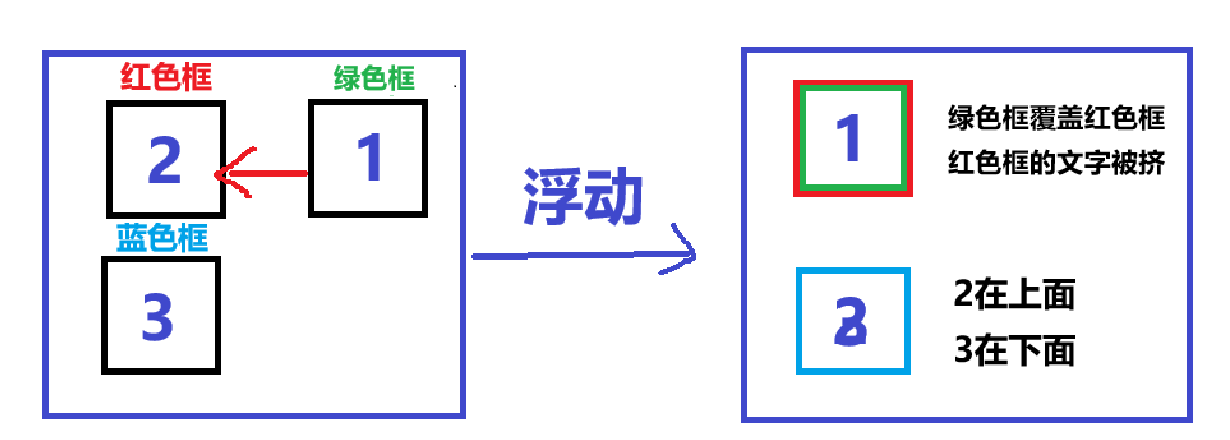
CSS 的 Float(浮动)使元素脱离文档流,按照指定的方向(左或右发生移动),直到它的外边缘碰到包含框或另一个浮动框的边框为止
浮动设计的初衷为了解决文字环绕图片问题,浮动后一定不会将文字挡住,这是设计初衷
文档流是是文档中可显示对象在排列时所占用的位置/空间,而脱离文档流就是在页面中不占位置了
浮动属性
| left | 元素向左浮动。 |
|---|---|
| right | 元素向右浮动。 |
| none | 默认值,元素不浮动,并会显示在其在文本中出现的位置。 |
浮动原则
(1)当一个元素浮动后,空位会由下方的元素补齐,就像汽水冒泡一样

(2)浮动过程中,块会被覆盖,但是文字不会被覆盖,会被挤出去
示例代码
html
<head>
  <meta charset="UTF-8" />
  <style>
    .outerDiv {
      width: 500px;
      height: 300px;
      border: 1px solid green;
      background-color: rgb(230, 224, 224);
    }
    .innerDiv {
      width: 100px;
      height: 100px;
      border: 1px solid blue;
      float: left;
    }
    .d1 {
      background-color: greenyellow;
      /*  float: right; */
    }
    .d2 {
      background-color: rgb(79, 230, 124);
    }
    .d3 {
      background-color: rgb(26, 165, 208);
    }
  </style>
</head>
<body>
  <div class="outerDiv">
    <div class="innerDiv d1">框1</div>
    <div class="innerDiv d2">框2</div>
    <div class="innerDiv d3">框3</div>
  </div>
</body>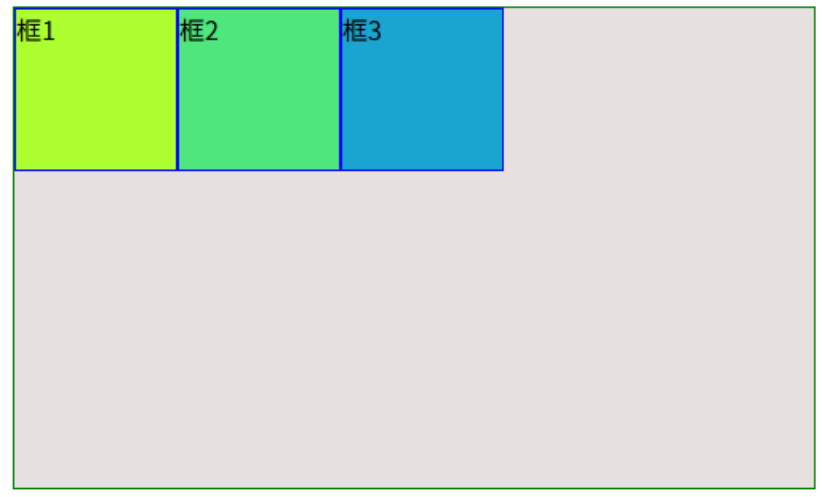
CSS 定位
基本介绍
position 属性指定了元素的定位类型
| 值 | 描述 |
|---|---|
| static | 默认值,没有定位,元素按照正常的文档流进行排列(忽略 top、bottom、left、right 以及 z-index 等属性)。 |
| absolute | 生成相对于定位的元素,相对于 static 定位之外的第一个父元素进行定位。元素的位置通过 "left"、"top"、"right" 以及 "bottom" 属性进行控制。 |
| relative | 生成相对于其正常位置进行定位。因此,"left:20" 会向元素的 LEFT 位置添加 20 像素。 |
| fixed | 生成相对于浏览器窗口定位。元素的位置通过 "left"、"top"、"right" 以及 "bottom" 属性进行控制。 |
static
不设置的时候的默认值就是 static,静态定位,没有定位,元素出现在该出现的位置,块级元素垂直排列,行内元素水平排列
html
<head>
  <meta charset="UTF-8" />
  <style>
    .innerDiv {
      width: 100px;
      height: 100px;
    }
    .d1 {
      background-color: rgb(166, 247, 46);
      position: static;
    }
    .d2 {
      background-color: rgb(79, 230, 124);
    }
    .d3 {
      background-color: rgb(26, 165, 208);
    }
  </style>
</head>
<body>
  <div class="innerDiv d1">框1</div>
  <div class="innerDiv d2">框2</div>
  <div class="innerDiv d3">框3</div>
</body>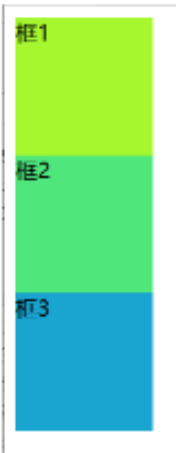
absolute
html
<head>
  <meta charset="UTF-8" />
  <style>
    .innerDiv {
      width: 100px;
      height: 100px;
    }
    .d1 {
      background-color: rgb(166, 247, 46);
      position: absolute;
      left: 300px;
      top: 100px;
    }
    .d2 {
      background-color: rgb(79, 230, 124);
    }
    .d3 {
      background-color: rgb(26, 165, 208);
    }
  </style>
</head>
<body>
  <div class="innerDiv d1">框1</div>
  <div class="innerDiv d2">框2</div>
  <div class="innerDiv d3">框3</div>
</body>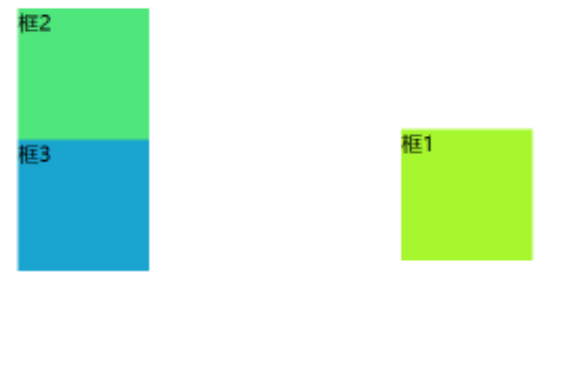
relative
html
<head>
  <meta charset="UTF-8" />
  <style>
    .innerDiv {
      width: 100px;
      height: 100px;
    }
    .d1 {
      background-color: rgb(166, 247, 46);
      position: relative;
      left: 30px;
      top: 30px;
    }
    .d2 {
      background-color: rgb(79, 230, 124);
    }
    .d3 {
      background-color: rgb(26, 165, 208);
    }
  </style>
</head>
<body>
  <div class="innerDiv d1">框1</div>
  <div class="innerDiv d2">框2</div>
  <div class="innerDiv d3">框3</div>
</body>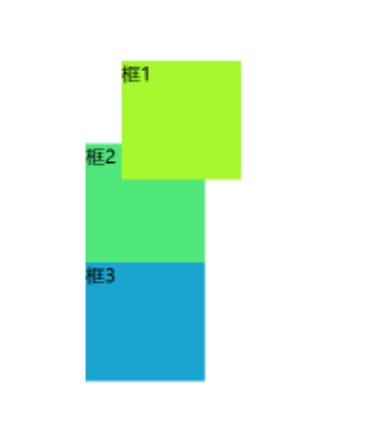
fixd
html
<head>
  <meta charset="UTF-8" />
  <style>
    .innerDiv {
      width: 100px;
      height: 100px;
    }
    .d1 {
      background-color: rgb(166, 247, 46);
      position: fixed;
      right: 30px;
      top: 30px;
    }
    .d2 {
      background-color: rgb(79, 230, 124);
    }
    .d3 {
      background-color: rgb(26, 165, 208);
    }
  </style>
</head>
<body>
  <div class="innerDiv d1">框1</div>
  <div class="innerDiv d2">框2</div>
  <div class="innerDiv d3">框3</div>
  br*100+tab
</body>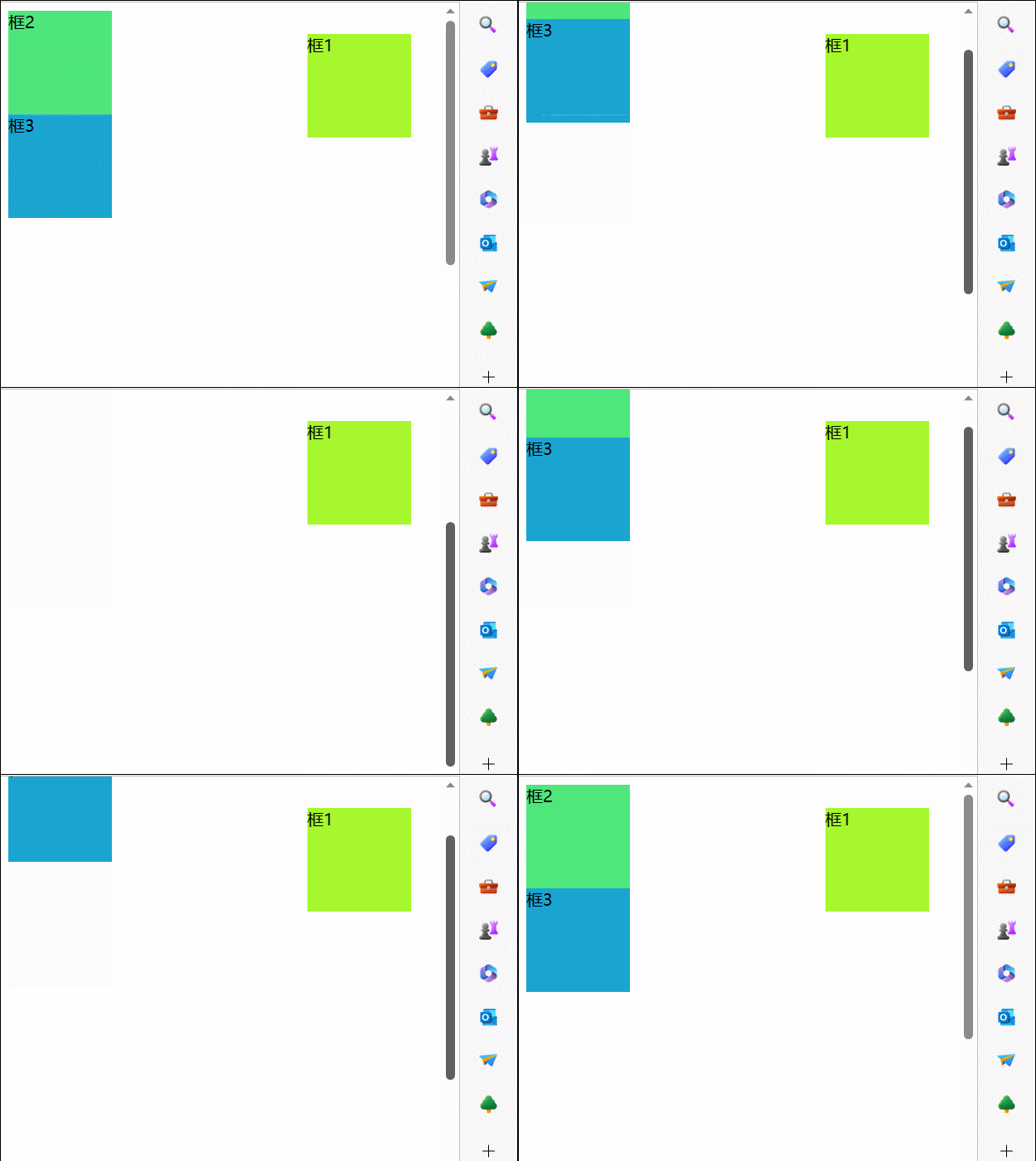
盒子模型
基本介绍
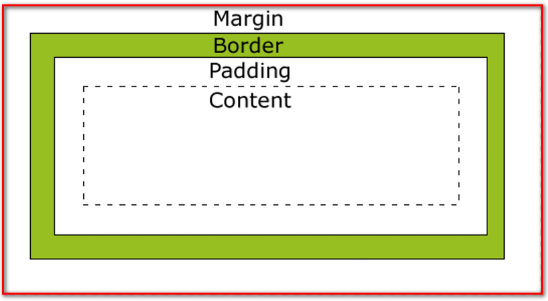
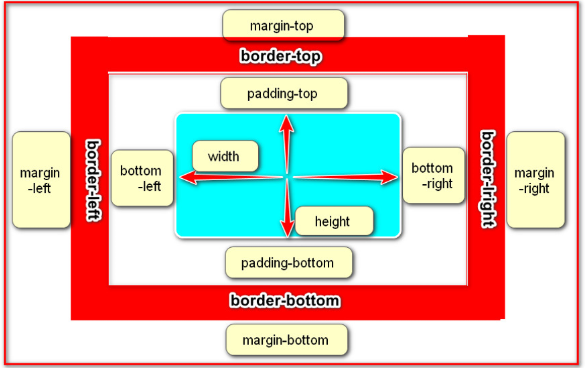
CSS 盒模型本质上是一个盒子,封装周围的 HTML 元素,它包括:边距(margin),边框(border),填充(padding),和实际内容(content)
属性
示例代码
html
<head>
  <meta charset="UTF-8" />
  <style>
    .outerDiv {
      width: 800px;
      height: 300px;
      border: 1px solid green;
      background-color: rgb(230, 224, 224);
      margin: 0px auto;
    }
    .innerDiv {
      width: 100px;
      height: 100px;
      border: 1px solid blue;
      float: left;
      /* margin-top: 10px;
            margin-right: 20px;
            margin-bottom: 30px;
            margin-left: 40px; */
      margin: 10px 20px 30px 40px;
    }
    .d1 {
      background-color: greenyellow;
      /* padding-top: 10px;
            padding-right: 20px;
            padding-bottom: 30px;
            padding-left: 40px; */
      padding: 10px 20px 30px 40px;
    }
    .d2 {
      background-color: rgb(79, 230, 124);
    }
    .d3 {
      background-color: rgb(26, 165, 208);
    }
  </style>
</head>
<body>
  <div class="outerDiv">
    <div class="innerDiv d1">框1</div>
    <div class="innerDiv d2">框2</div>
    <div class="innerDiv d3">框3</div>
  </div>
</body>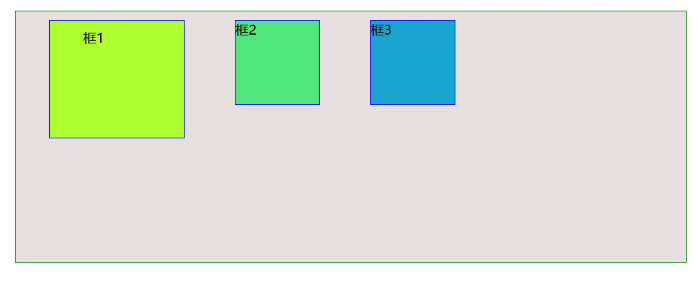
Tlias 员工管理界面案例

html
<!DOCTYPE html>
<html lang="en">
  <head>
    <meta charset="UTF-8" />
    <meta
      name="viewport"
      content="width=
    , initial-scale=1.0"
    />
    <title>Document</title>
    <style>
      /* 整体布局 */
      #container {
        width: 80%;
        margin: 0 auto;
      }
      /* 顶栏样式 */
      .header {
        display: flex;
        background-color: #c2c0c0;
        justify-content: space-between;
      }

      /* 加大加粗标题 */
      .header h1 {
        margin: 0 10px;
        font-size: 24px;
        font-weight: bold;
      }

      /* 导航链接样式 */
      .header a {
        text-decoration: none;
        color: #333;
        font-size: 16px;
        font-weight: bold;
        padding-top: 5px;
        padding-right: 5px;
      }

      /* 搜索表单样式 */
      .search-form input[type="text"],
      .search-form select {
        margin-top: 10px;
        padding: 5px 10px;
        margin-left: 10px;
        border: 1px solid #ccc;
        border-radius: 4px;
        width: 200px;
      }

      /* 搜索表单按钮样式 */
      .search-form input[type="submit"] {
        background-color: #4e6de9;
        color: white;
        margin-left: 10px;
        border-radius: 5px;
      }
      .search-form input[type="reset"] {
        background-color: #888b94;
        color: white;
        margin-left: 10px;
        border-radius: 5px;
      }

      /* 设置表格单元格边框 */
      .table {
        margin-top: 10px;
        min-width: 100%;
        border-collapse: collapse;
      }

      .table td,
      .table th {
        border: 2px solid #ddd;
        padding: 8px;
        text-align: center;
      }

      .image {
        width: 50px;
        height: 50px;
      }
      .btn {
        font-size: 15px;
        width: 50px;
        height: 25px;
        margin-left: 10px;
        padding: 0px auto;
      }
      .footer {
        margin-top: 10px;
        color: white;
        text-align: center;
        background-color: #c2c0c0;
        padding: 100px auto;
      }
    </style>
  </head>
  <body>
    <div id="container">
      <!-- 顶栏 -->
      <div class="header">
        <h1>Tlias智能学习辅助系统</h1>
        <a href="login.html">退出登录</a>
      </div>
      <!-- 搜索表单区域 -->
      <form class="search-form" method="post">
        <input type="text" placeholder="请输入姓名" />
        <select name="gender">
          <option value="">性别</option>
          <option value="男">男</option>
          <option value="女">女</option>
        </select>
        <select name="position">
          <option value="">职位</option>
          <option value="讲师">讲师</option>
          <option value="学工主管">学工主管</option>
          <option value="教师主管">教师主管</option>
          <option value="班主任">班主任</option>
        </select>
        <input type="submit" value="查询" />
        <input type="reset" value="清空" />
      </form>
      <!-- 表格部分 -->
      <table class="table">
        <thead>
          <tr>
            <th>姓名</th>
            <th>性别</th>
            <th>头像</th>
            <th>职位</th>
            <th>入职日期</th>
            <th>最后操作时间</th>
            <th>操作</th>
          </tr>
        </thead>
        <tbody>
          <tr>
            <td>令狐冲</td>
            <td>男</td>
            <td>
              <img
                src="https://web-framework.oss-cn-hangzhou.aliyuncs.com/2023/1.jpg"
                alt="令狐冲"
                class="image"
              />
            </td>
            <td>讲师</td>
            <td>2021-03-15</td>
            <td>2023-07-30T12:00:00Z</td>
            <td>
              <button class="btn">编辑</button>
              <button class="btn">删除</button>
            </td>
          </tr>
          <tr>
            <td>任盈盈</td>
            <td>女</td>
            <td>
              <img
                src="https://web-framework.oss-cn-hangzhou.aliyuncs.com/2023/1.jpg"
                alt="任盈盈"
                class="image"
              />
            </td>
            <td>学工主管</td>
            <td>2020-04-10</td>
            <td>2023-07-29T15:00:00Z</td>
            <td>
              <button class="btn">编辑</button>
              <button class="btn">删除</button>
            </td>
          </tr>
          <tr>
            <td>岳不群</td>
            <td>男</td>
            <td>
              <img
                src="https://web-framework.oss-cn-hangzhou.aliyuncs.com/2023/1.jpg"
                alt="岳不群"
                class="image"
              />
            </td>
            <td>教研主管</td>
            <td>2019-01-01</td>
            <td>2023-07-30T10:00:00Z</td>
            <td>
              <button class="btn">编辑</button>
              <button class="btn">删除</button>
            </td>
          </tr>
          <tr>
            <td>宁中则</td>
            <td>女</td>
            <td>
              <img
                src="https://web-framework.oss-cn-hangzhou.aliyuncs.com/2023/1.jpg"
                alt="宁中则"
                class="image"
              />
            </td>
            <td>班主任</td>
            <td>2018-06-01</td>
            <td>2023-07-29T09:00:00Z</td>
            <td>
              <button class="btn">编辑</button>
              <button class="btn">删除</button>
            </td>
          </tr>
        </tbody>
      </table>
      <footer class="footer">
        <p>江苏传智播客教育科技股份有限公司</p>
        <p>版权所有 Copyright 2006-2024 All Rights Reserved</p>
      </footer>
    </div>
  </body>
</html>